How to Compare Two Excel Files for Differences
Updated 2026-10-11 · Free · Works in your browser
Quick answer
To compare two Excel files, drop both into the free online comparison tool, pick the sheet and key column (like an ID or order number) in each, and click Compare. Rows are aligned by their key and every added, removed, or changed cell is listed in a downloadable .xlsx diff report — no Excel add-ins, no upload, no sign-up.
Skip the reading — jump straight to the free tool: Compare Two Excel Files →
How to Compare Two Excel Files Online (Free)
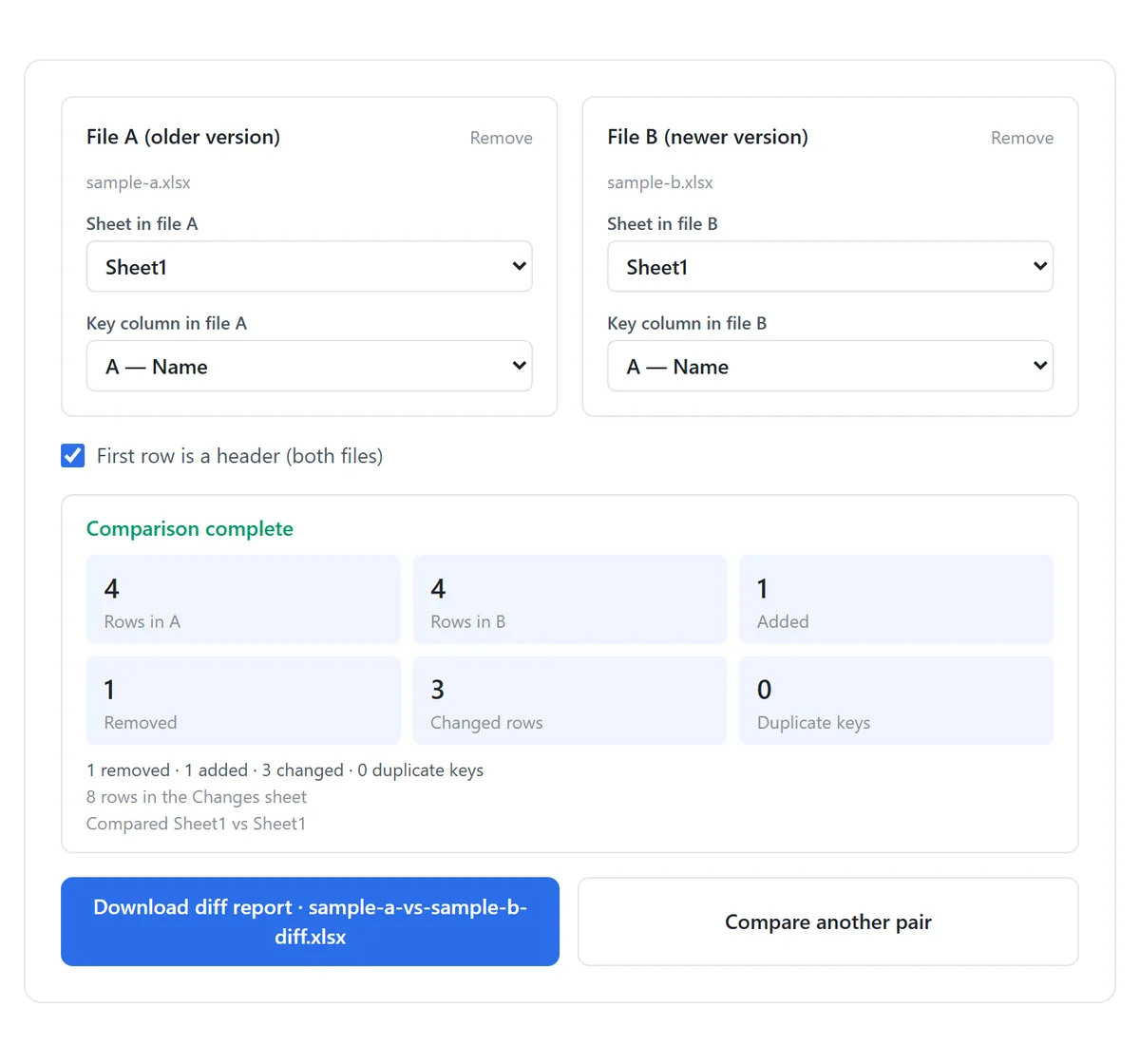
- Open the Excel comparison tool and choose file A (for example the older export) and file B (the newer one). Both are parsed locally in your browser.
- Pick the sheet to compare in each file — they default to the first sheet and can be compared even when the sheet names differ.
- Pick the key column in each file: the column that uniquely identifies a row, such as an ID, SKU, or order number. It defaults to column A.
- Keep “First row is a header” enabled when row 1 contains column titles.
- Click Compare files, review the summary, and download the diff report named {file-a}-vs-{file-b}-diff.xlsx.
The key column matters: without it, a comparison can only line rows up by position, so one inserted row makes everything after it look “changed”. Aligning by key means an inserted customer shows up as one Added row instead of a hundred false changes.
Reading the Diff Report
The downloaded workbook contains two sheets. Summary gives the counts at a glance: how many rows were added, removed, and changed. Changes lists every difference on its own row, with the key value, the column affected, and the old versus new content side by side.
- Added — a key exists in file B but not in file A.
- Removed — a key exists in file A but not in file B.
- Changed — the same key exists in both, but one or more cells differ; each differing cell is reported individually.
Your original files are never modified — the report is a separate new workbook, rebuilt from cell values, so formatting in the report itself is simplified.
How to Compare in Excel Manually (For Reference)
Excel ships comparison abilities, but each is a partial fit:
- View Side by Side (View tab) shows both windows and scrolls them together — useful for eyeballing, but differences are found by your own eyes.
- Spreadsheet Compare (included with Microsoft 365 Apps for enterprise and Office Professional Plus) produces a real cell-level diff, but it is a separate desktop program many installs simply do not have.
- The Inquire tab exposes workbook analysis and compare commands on the same enterprise editions.
- A formula approach — =A2=B2 filled down, or a COUNTIF/MATCH lookup per key — works on any edition, but you build it yourself every time and it does not produce a tidy change list.
None of these run on a phone or a machine without Office, and none produce a shareable change log — which is usually what a reviewer or manager actually wants.
Beyond Compare: Understanding the Combined Data
If the point of the comparison is not the differences but the data itself — totals, distributions, outliers across the merged result — the quick data-analysis tool summarizes a workbook without formulas: per-column type detection, basic statistics, and value counts in one pass.
Tools Used in This Guide
Frequently Asked Questions
Can it compare files with different sheet names?
Yes — you pick the sheet to compare in each file independently, so “Sheet1” in one file can be diffed against “2024 Q4” in the other.
What if my rows are not in the same order?
That is exactly what the key column solves. Rows are aligned by their key value, so reordering does not create false differences.
Does it compare formulas or values?
Values. Two cells showing the same result are equal even when the underlying formulas differ — usually what a diff should mean. Formatting differences are not reported.
Is it free, and is my data uploaded?
Free, no sign-up, and both files are parsed entirely in your browser — nothing is uploaded to any server.
Can I compare more than two files?
One pair at a time, which keeps the report readable. For three or more versions, compare sequentially against the oldest file.
Related Guides
Ready to try it on your own file?
Open Compare Two Excel Files — It's Free