How to Convert XLSX to CSV Without Opening Excel
Updated 2026-10-11 · Free · Works in your browser
Quick answer
You do not need Excel installed to convert XLSX to CSV. Drop the file into the free online converter in your browser and click Convert — every worksheet is exported as a UTF-8 CSV with proper escaping, single-sheet files download directly, and multi-sheet workbooks come back as a ZIP. Nothing is uploaded to a server.
Skip the reading — jump straight to the free tool: XLSX to CSV Converter →
How to Convert XLSX to CSV Online (No Excel Needed)
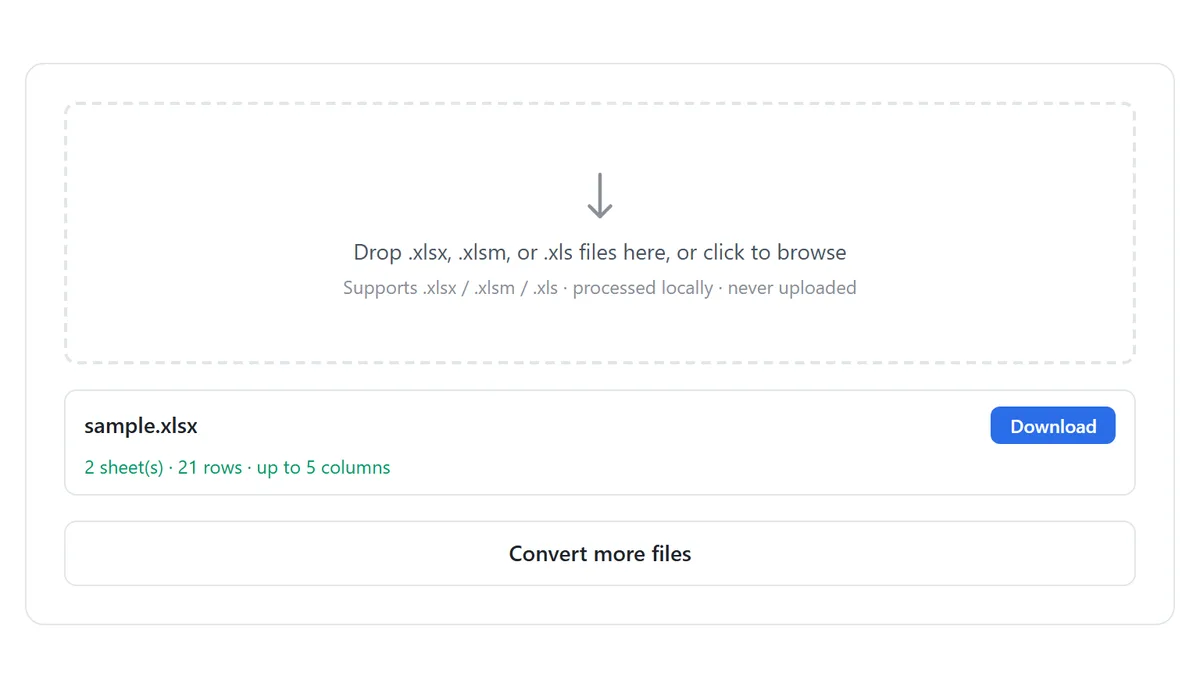
- Open the XLSX to CSV converter and drop in one or more .xlsx, .xlsm, or .xls files. Everything is processed locally in your browser.
- Click Convert to CSV — each worksheet is exported as a separate CSV with RFC 4180 escaping, so commas, quotes, and line breaks inside cells cannot break the output.
- Check the report — each file lists its sheet count, total rows, and column count.
- Download the result: a single-sheet workbook gives one CSV; multi-sheet workbooks are zipped together as {workbook}-{sheet}.csv files.
The whole conversion runs on your device — the file never leaves the browser tab, which makes it safe for client data and usable on locked-down machines where you cannot install software anyway.
Why “Save As CSV” in Excel Often Goes Wrong
Opening the file in Excel and using File ▸ Save As ▸ CSV works — until it does not:
- Only the active sheet is saved; the other worksheets silently disappear from the output.
- Excel’s legacy “CSV (MS-DOS)” choice writes an ANSI code page, turning é, ñ, 中, or 한 into mojibake in other tools.
- Leading zeros (zip codes, phone numbers, SKU codes) are stripped when Excel re-parses its own file later.
- Values with more than 15 digits get rounded, and dates are rewritten in your local format — a nightmare for downstream imports.
CSV has no formatting, formulas, or multiple sheets by design. Converting always flattens to values — the question is only whether the values survive correctly.
What a Good CSV Output Should Contain
- UTF-8 encoding with a BOM — the byte-order mark is what makes Excel on Windows read accents and CJK text correctly.
- RFC 4180 escaping — fields containing commas, quotes, or newlines must be wrapped in double quotes, and embedded quotes doubled.
- CRLF line endings — the separator Excel and most Windows import wizards expect.
- One file per sheet, clearly named, because CSV is a single-table format.
The online converter handles all four automatically, which is exactly where manual export and most quick scripts fall short.
Converting in Bulk, and Back Again
For whole folders of workbooks, the batch converter processes many files in one pass. Going the other direction — CSV into a proper .xlsx — works the same way in the browser with the CSV to XLSX converter, useful when a system exports CSV and your next step needs a real workbook.
Tools Used in This Guide
Frequently Asked Questions
Can I convert XLSX to CSV without Excel installed?
Yes. The converter runs entirely in your browser — Chrome, Edge, Firefox, or Safari on any OS, including Chromebooks and phones. No installation and no account.
What happens to multiple sheets?
Each worksheet becomes its own CSV file (named workbook-sheet.csv). Multi-sheet workbooks are downloaded together as a ZIP, because CSV cannot hold more than one table.
Will my special characters survive?
Yes — output is UTF-8 with a BOM, so accented text and CJK characters open correctly in Excel instead of turning into mojibake.
Are formulas converted to their values?
Yes. CSV stores plain text, so every formula is exported as its current calculated value — the standard behavior of Excel’s own Save As CSV too.
Is there a file size limit?
Conversion is free without artificial limits for typical files; very large CSV work is handled by the dedicated streaming converter on the CSV to XLSX page.
Is my file uploaded anywhere?
No. The file is read and converted inside your browser tab and never leaves your device.
Related Guides
Ready to try it on your own file?
Open XLSX to CSV Converter — It's Free