How to Remove Duplicates in Excel Without Formula
Updated 2026-10-11 · Free · Works in your browser
Quick answer
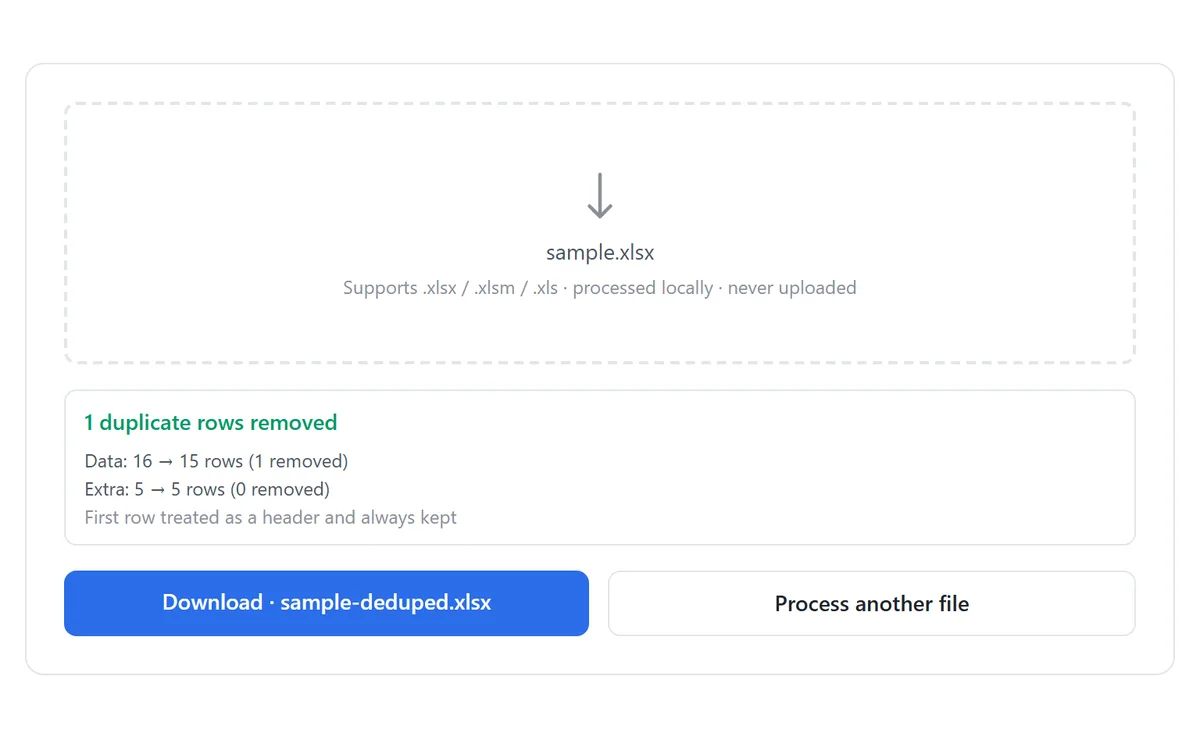
Drop your Excel file into the free online duplicate remover, choose whether row 1 is a header, and click Remove duplicates. Every row is compared across all columns, the first occurrence is kept, and you get a per-sheet report showing exactly how many rows were removed — no formulas, no Excel install, nothing uploaded.
Skip the reading — jump straight to the free tool: Remove Duplicates from Excel →
How to Remove Duplicates Without Formula (3 Steps)
- Open the free duplicate remover and drop in your .xlsx, .xlsm, or .xls file. The file is parsed locally in your browser and never uploaded.
- Keep “First row is a header” enabled if row 1 contains column titles — the header is then always kept and never compared against data rows.
- Click Remove duplicates. Each sheet is scanned, the first occurrence of every row is kept, and a report shows the row count before and after. Download the cleaned .xlsx.
That is the whole process. There is no formula to write, no ribbon to navigate, and no risk of Excel silently comparing the wrong columns — the tool always compares entire rows and gives you a before/after count for every sheet.
When a Formula-Free Approach Is the Better Choice
Excel offers formula-based deduplication (UNIQUE, COUNTIF helpers) and a built-in Remove Duplicates button, but both have downsides that matter for quick, one-off cleanups:
- Formulas demand a spare column or a spilled array — and the result is a formula, not clean values, so you have to copy-paste-as-values afterwards anyway.
- The Remove Duplicates button gives no preview and no per-sheet report: it just deletes rows and tells you how many are gone, with no way to check what was removed.
- Neither works if the file is on a machine without Excel — a Mac in a browser tab, a school Chromebook, or a phone.
- Large exports (100k+ rows) slow to a crawl when helper formulas recalculate on every change.
If you want to keep the duplicates visible instead of deleting them — for example to review which records repeat — extracting a unique-values list with occurrence counts is often more useful than deleting first and asking questions later.
How to Remove Duplicates in Excel Manually (For Reference)
If you have Excel open anyway, the built-in route takes four clicks:
- Select any cell inside your data range.
- Go to the Data tab and click Remove Duplicates.
- Leave every column checked to compare whole rows (unchecking columns makes Excel compare only the selected ones — rows are deleted when those columns match, which can destroy legitimate data).
- Click OK. Excel reports how many duplicate values were removed and how many unique values remain.
The formula equivalent is =UNIQUE(A2:D100) in Microsoft 365, which spills a deduplicated copy of the range. Remember that the result is live: sort or edit the source and the output moves with it, and you still need to paste as values before sharing the file.
Excel keeps the first occurrence and deletes later ones — the same rule this site’s tool uses. If you need “keep the latest occurrence” instead, sort by date descending before deduplicating.
Which Method Should You Use?
| Situation | Best method |
|---|---|
| No Excel installed (browser, Chromebook, phone) | Online duplicate remover |
| Quick one-off cleanup with a per-sheet report | Online duplicate remover |
| Need to compare only specific columns, not whole rows | Excel built-in (Data ▸ Remove Duplicates) |
| Need a live formula that updates with the data | UNIQUE function |
| Sensitive data that must never leave your device | Both work — the online tool also runs 100% locally |
A note on privacy: the online tool reads and writes your workbook entirely inside your browser tab. The file is never uploaded to a server, so it is as local as desktop Excel — you can even disconnect from the network after the page loads.
Related Excel Cleanup Tools
Deduplication is usually one step in a larger cleanup. These free tools pair well with it:
Tools Used in This Guide
Frequently Asked Questions
Is the online duplicate remover really free?
Yes — free with no sign-up and no file limit. All processing happens in your browser; your workbook is never uploaded to a server.
What counts as a duplicate row?
A row is a duplicate only when every cell matches across the full width of the sheet. Values are normalized first (dates to ISO format, empty cells to null), so 1/15/2024 and 15-Jan are treated as the same date. The first occurrence is always kept.
Do I need to write any formula?
No. The tool compares whole rows directly in the browser. Formulas like UNIQUE or COUNTIF are never involved.
Will my header row be deleted?
No. With “First row is a header” enabled (the default), the first row of every sheet is kept and excluded from the comparison.
Is my formatting preserved?
The output is a value-level .xlsx rebuilt from your data, so styles, column widths, and charts are simplified. If formatting matters, open the file in the free online editor and remove duplicates there instead.
Can it remove duplicates based on one column, like email only?
Not in this tool — it matches whole rows by design, which is the safest default. For column-subset matching, use Excel’s built-in Remove Duplicates and select the specific columns.
Related Guides
Ready to try it on your own file?
Open Remove Duplicates from Excel — It's Free