How to Extract Unique Values in Excel Without the UNIQUE Function
Updated 2026-10-11 · Free · Works in your browser
Quick answer
The UNIQUE() function only exists in Excel 365 and 2021. On any other version, the fastest route is the free online Extract Unique Values tool: pick a column, click once, and download a new workbook listing every distinct value in first-seen order — with an optional count of how many times each one appeared.
Skip the reading — jump straight to the free tool: Extract Unique Values from Excel Column →
How to Extract Unique Values Online (3 Steps)
- Open the free Extract Unique Values tool and drop in your .xlsx, .xlsm, or .xls workbook. It is parsed locally in your browser and never uploaded.
- Choose the column from the candidates read from the first sheet — for example “A — Name” — and keep “First row is a header (skip it)” plus “Include occurrence count column” checked if they fit your data.
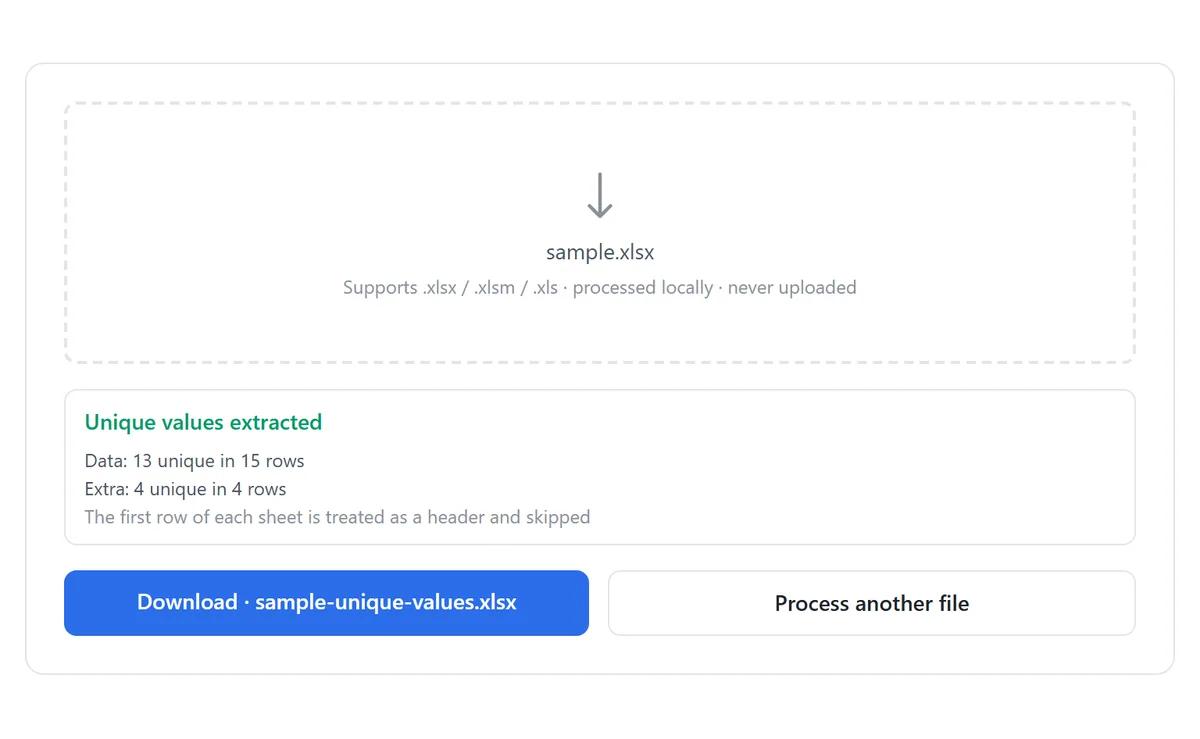
- Click Extract unique values. Every sheet is scanned at the same column index, and the result downloads as a brand-new .xlsx named your-file-name-unique-values.xlsx.
Values come out in first-seen order, not alphabetical — the order in which each distinct value first appears in your data. That makes the list easy to trace back to the source rows.
What the Output Looks Like
The result is a new workbook, not an edit of your file — the source stays exactly as it was. Every usable source sheet produces one result sheet named “{source sheet} unique”. The Value column lists each distinct value once, and the optional Count column shows how many times it appeared:
| Original column (City) | Value | Count |
|---|---|---|
| NYC | NYC | 3 |
| LA | LA | 1 |
| (empty cell) | (blank) | 2 |
Empty cells show up as a single “(blank)” entry instead of being silently dropped, so the counts always add up to the number of data rows you started with. Sheets narrower than the chosen column are skipped automatically and listed in the per-sheet report.
Manual Method: Remove Duplicates on a Copy
The classic no-UNIQUE technique inside Excel is to copy the column somewhere safe and run the Remove Duplicates button on the copy:
- Copy the column you care about and paste it into an empty area or a new sheet — never run Remove Duplicates on the original data.
- Select the pasted column, go to Data → Remove Duplicates, and confirm the “My data has headers” checkbox if the first cell is a title.
- Click OK. Excel deletes repeated values and reports how many unique values remain.
This method has no occurrence counts, no first-seen ordering guarantee, and it mutates whatever you point it at — pointing it at the wrong range deletes rows you cannot get back without an undo-and-retry. For a large workbook, one accidental click on the original column is enough to wreck the day.
Other Ways, and Why They Fall Short
- Advanced Filter (Data → Advanced → Unique records only → Copy to another location) leaves the source intact and works on old Excel versions — but it hides counts, must be redone per sheet, and the dialog is buried enough that most people never find it twice.
- Array formulas (INDEX/MATCH with COUNTIF, entered with Ctrl+Shift+Enter on legacy Excel) produce a live list, but they are fragile: one deleted row mid-list produces #N/A holes, and they recalculate painfully on large exports.
- Pivot tables give a distinct count, not the distinct values themselves — fine for reporting, useless when you need the actual list to feed another sheet or system.
| Extract Unique Values tool | Remove Duplicates on a copy | Advanced Filter | UNIQUE() | |
|---|---|---|---|---|
| Excel version needed | None — any browser | 2007+ | 2007+ | 365 / 2021 only |
| Occurrence counts | Optional column | No | No | With COUNTIF helper |
| Source file untouched | Yes — new workbook | No | Yes | Yes |
| All sheets at once | Yes | Per sheet | Per sheet | Per formula |
| Blanks represented | Yes — “(blank)” row | Dropped | Included | Blank cell |
Extracting a list and deleting duplicates answer different questions. If the goal is a permanently smaller table rather than a reference list, removing duplicate rows outright is the workflow you want — the online duplicate remover keeps the first occurrence of every row and reports the change per sheet.
Tools Used in This Guide
Frequently Asked Questions
Does this work on Mac, Chromebook, or a phone?
Yes. The tool runs entirely in the browser — no Excel install, no Windows, no sign-up. It works wherever a modern browser runs.
Are the values sorted alphabetically?
No. They come out in first-seen order: the order in which each distinct value first appears in your data. Sort the result sheet afterwards if you need alphabetical.
Can I get the counts without the values?
The Count column is optional but always paired with the Value column — a count is meaningless without knowing which value it counts. Pivot tables are the better fit when you only need the number.
Is my file uploaded anywhere?
No. Parsing, scanning, and workbook generation all happen locally in your browser. Nothing leaves your device.
What happens to empty cells in the column?
They collapse into one “(blank)” entry with its own count, so the list stays honest about how much of the column is actually empty.
Will this change my original file?
No. The output is a brand-new workbook with one result sheet per usable source sheet. Your original download is untouched.
Related Guides
Ready to try it on your own file?
Open Extract Unique Values from Excel Column — It's Free