How to Reduce Excel File Size (Without Losing Data)
Updated 2026-10-11 · Free · Works in your browser
Quick answer
Most bloated .xlsx files are mostly junk: the calcChain cache, per-sheet printer settings, uncompressed images, and duplicated styles. The free online Excel Compressor removes exactly those and recompresses embedded images — your formulas, data, and formatting stay byte-for-byte identical.
Skip the reading — jump straight to the free tool: Excel Compressor →
How to Compress an Excel File Online (4 Steps)
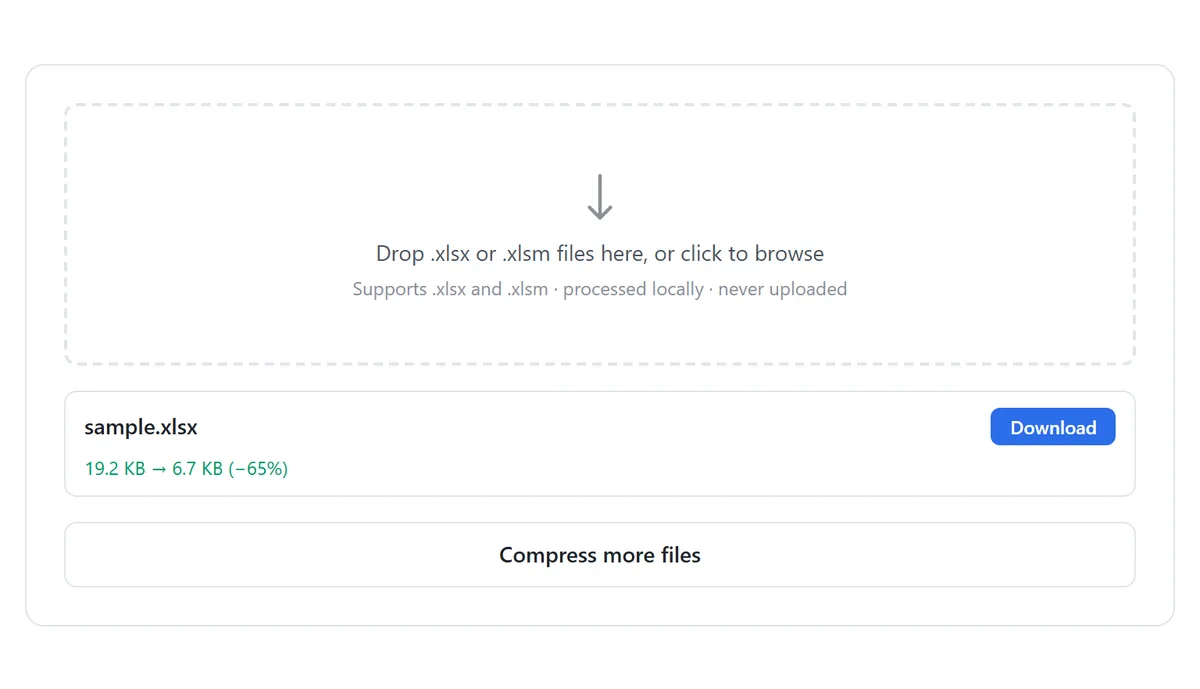
- Open the free Excel Compressor and drop in one or more .xlsx or .xlsm workbooks — batch is fine. Everything runs locally; the file is never uploaded.
- The tool scans the workbook, removes the calcChain cache and printer settings, and recompresses embedded images automatically.
- Check the size report — before and after, with the percentage saved.
- Download the compressed file.
Excel rebuilds the calcChain on the next open — deleting it costs nothing. Printer settings are per-sheet leftovers from whoever last hit Ctrl+P. Neither is “your data”, which is why removing them cannot lose anything you would miss.
Why Excel Files Get So Large
An .xlsx is a ZIP archive of XML parts, and the parts that bloat it are rarely the parts holding your data:
- calcChain.xml — a cached list of formula calculation order, rebuilt automatically by Excel on the next open. Pure dead weight in transit.
- Printer settings — every sheet can store its own print configuration, which is pointless when the file is shared digitally.
- Uncompressed images — pictures are embedded at their original resolution even when displayed cell-sized; a phone photo can outweigh a million rows of data.
- Redundant styles — years of copy-pasting duplicate cell formats into the stylesheet XML.
- Real data growth — the only kind of size that compression cannot touch, because the bytes are the payload.
Manual Slim-Down Inside Excel
- Save as .xlsx (not .xls) — the modern format compresses structurally; .xls does not.
- Compress pictures: select any image → Picture Format → Compress Pictures → untick “Apply only to this picture” → pick a resolution (150 ppi is fine for on-screen).
- Delete unused sheets, and clear “empty-looking” ranges that actually carry formatting far beyond the data (Ctrl+End shows where Excel thinks the used range ends).
- Remove what the file no longer needs: VBA macros, comments, and tracked metadata all add parts to the archive.
- As a last resort for report-style data: convert formulas to values, or export a CSV — a fraction of the size, at the cost of everything but raw values.
Two manual “tips” to avoid: deleting rows/columns you do need (obviously) and zipping the .xlsx for sharing — that shrinks the email attachment, not the file, and the bloat comes straight back on unzip.
What the Compressor Does and Does Not Touch
| Excel Compressor tool | Compress Pictures dialog | Convert to values | Save as CSV | |
|---|---|---|---|---|
| Data and formulas | Untouched | Untouched | Values only | Values only, one sheet |
| Formatting | Untouched | Untouched | Untouched | Gone |
| calcChain / printer junk | Removed | Stays | Stays | N/A |
| Images | Recompressed | Smaller, per file | Stays | Gone |
| Macros (.xlsm) | Untouched | Stays | Stays | Gone |
| Excel needed | No | Yes | Optional | Optional |
If the size report shows images dominating, the recompression does the heavy lifting. If the workbook is still heavy after compression, the remaining weight is real data or macros — and the macro remover is the honest next step for .xlsm files whose VBA nobody uses anymore. Sharing a file outside the company is also the moment to think about what else it carries: author names, file paths, and comment threads.
Tools Used in This Guide
Frequently Asked Questions
Will compression delete any of my data?
No. Only redundant parts are removed — the calcChain cache, printer settings, and duplicated style entries. Your formulas, data, and formatting stay identical, and Excel rebuilds the calcChain automatically the next time the file opens.
How much smaller will my file get?
It depends entirely on what is bloating it. calcChain and printer junk alone typically save a few percent; image-heavy workbooks can shrink dramatically because embedded pictures get recompressed.
Are my macros safe?
Yes — a compressed .xlsm keeps its VBA untouched. If the macros are the problem rather than the asset, remove them separately and save as .xlsx.
Is my file uploaded to a server?
No. Scanning and repacking happen entirely in your browser. Nothing leaves your device, and no sign-up is required.
Can I compress several files at once?
Yes — drop multiple .xlsx/.xlsm files and download the batch. Each file gets its own before/after size report.
What if the file is still too big after compression?
Then the size is real data, images that must stay, or macros. Convert formulas to values, export a single-sheet CSV for report data, or remove the macros — each attacks a different remaining source of weight.
Related Guides
Ready to try it on your own file?
Open Excel Compressor — It's Free