How to Remove Formulas in Excel but Keep the Values
Updated 2026-10-11 · Free · Works in your browser
Quick answer
In Excel, copy the range and Paste Special → Values — per sheet, per range, every time. The free online Convert Formulas to Values tool does every formula on every sheet in one pass: the formula is deleted, the last calculated result stays, and a report warns about any cell Excel never calculated.
Skip the reading — jump straight to the free tool: Convert Excel Formulas to Values →
How to Freeze All Formulas to Values Online
- Open the free Convert Formulas to Values tool and drop in your .xlsx, .xlsm, or .xls workbook. Processing is fully local — the file is never uploaded.
- Click Convert formulas to values — every sheet is scanned cell by cell for formulas.
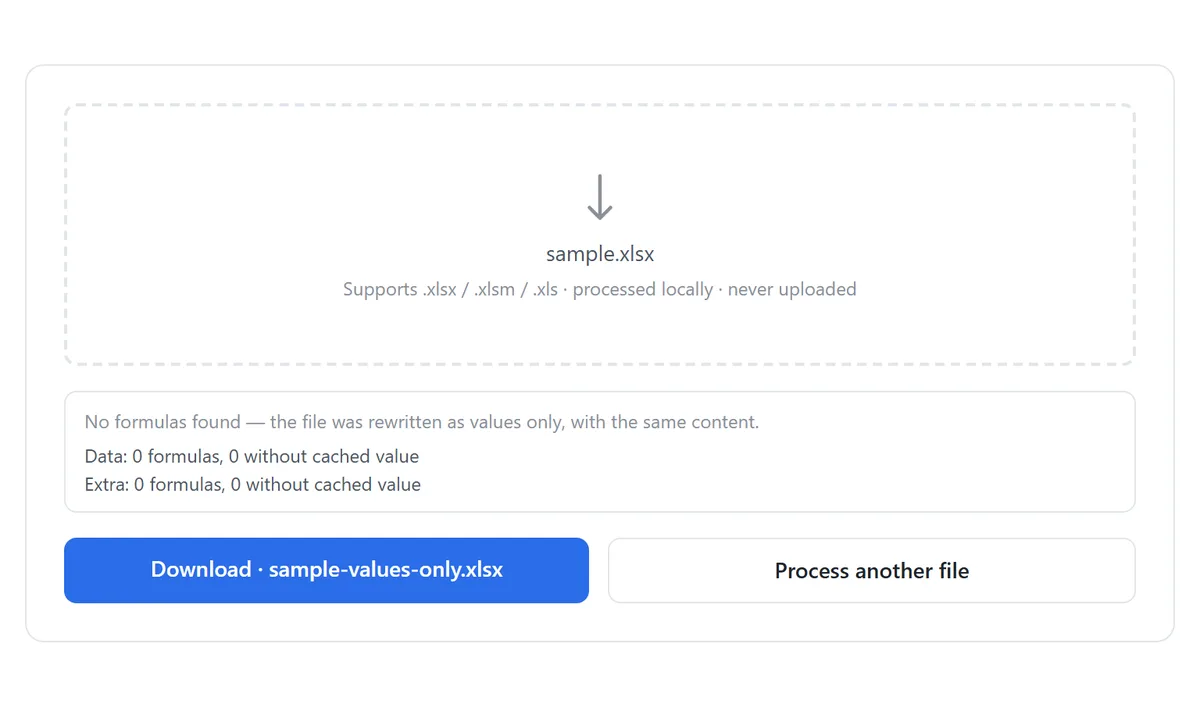
- Read the report: for each sheet it lists the formula count and how many cells will go blank because they have no cached value.
- If an amber warning appears, open the file in Excel or the online editor, let it calculate, save once, then run the tool again.
- Download the result as your-file-name-values-only.xlsx — fixed values only, with no formulas left.
The cached value is what Excel last saved into the file. A formula that was pasted in but never recalculated and saved has no cache — converting it would produce a blank. The report counts those cells explicitly instead of silently blanking them.
What Happens to Each Cell
Inside an .xlsx file, a formula cell stores two things: the formula itself (f) and the cached value (v) that Excel calculated the last time the file was saved. The conversion deletes the formula and keeps the cached value — ordinary cells are never touched:
| Cell before | Cell after |
|---|---|
| =SUM(B2:B10) showing 4,200 | 4,200 — a plain number |
| =IF(A2>0,"ok","check") showing “ok” | “ok” — plain text |
| A formula with no cached value | Blank — and flagged in the report |
| A normal typed value | Unchanged |
Because the formula is gone rather than hidden, nothing recalculates afterwards: changing an input cell no longer updates the results. That is the point — the numbers are frozen exactly as they were at conversion time.
Manual Method: Paste Special → Values
- Select the range with formulas and copy it (Ctrl+C).
- Right-click the same range → Paste Special → Values (or press Ctrl+Alt+V, then V).
- Repeat for every range on every sheet.
The manual route has two failure modes. First, it is per-range, per-sheet: a 10-sheet workbook means 10+ careful selections, and missing one hidden column of formulas is common. Second, pasting values over array formulas (dynamic arrays or legacy CSE formulas) can scatter #VALUE! or refuse the paste — those ranges need care no matter which method you use.
When Removing Formulas Is the Right Call
- Handing a file to someone who only needs the numbers — no recalculating, no broken-reference warnings on their machine.
- Stopping #REF! chains: a sheet rename, row deletion, or column move breaks every reference pointing at it; frozen values cannot break.
- Sending data to another system — imports, uploads, and CSV exports want values, not formulas.
- Keeping a snapshot: a values-only copy is a permanent record of “what the numbers were that day”.
- Sharing calculations without sharing the method — the formula is your intellectual property; the value is the deliverable.
After freezing, two follow-ups cover most downstream needs: if the values were built from text-formatted numbers, a text-to-numbers pass makes them computable again; and a values-only workbook is also the natural moment to slim the file down — unused formula machinery and cached chains are gone.
Tools Used in This Guide
Frequently Asked Questions
Will my data change?
No. Every formula cell keeps its last calculated result; ordinary typed cells are not touched at all. The only visible difference is that formulas no longer recalculate.
Why do some cells come out blank?
A formula cell whose result was never calculated and saved has no cached value to keep. The report names those cells — open the file in Excel, let it calculate, save, and convert again.
Can I get the formulas back afterwards?
No — the conversion is one-directional by design. Keep your original file; the converted download is a separate values-only copy.
Does it work on all sheets at once?
Yes. Every sheet of the workbook is scanned, and the per-sheet report shows how many formulas were frozen on each.
Does this delete macros from .xlsm files?
No. Formulas and macros are different layers — this tool touches formulas only. Use the Remove Macros tool when the VBA itself needs to go.
Is my file uploaded to a server?
No. Parsing and rewriting happen entirely in your browser — nothing leaves your device, and no sign-up is required.
Related Guides
Ready to try it on your own file?
Open Convert Excel Formulas to Values — It's Free