How to Split Full Names into First and Last in Excel
Updated 2026-10-11 · Free · Works in your browser
Quick answer
Excel’s Text to Columns with a space delimiter splits “First Last” in two clicks — but only one sheet at a time, and it overwrites neighbouring data. The free online Split Text to Columns tool does the same split on any delimiter, across every sheet, with an insert mode that never overwrites anything.
Skip the reading — jump straight to the free tool: Split Text into Columns in Excel →
How to Split Names Online (Every Sheet at Once)
- Open the free Split Text to Columns tool and drop in your .xlsx, .xlsm, or .xls workbook. Processing is fully local — the file is never uploaded.
- Confirm the column letter that holds the names (A, B, C…). The same column is processed in every sheet of the workbook.
- Pick the delimiter: space, comma, semicolon, pipe, tab, or a custom literal. A multi-character sequence such as “ -> ” is matched as a whole.
- Choose the mode: Insert adds new columns and shifts everything on the right; Overwrite replaces the neighbouring cells without widening the sheet.
- Keep “First row is a header” ticked (the default) so titles like “Full Name” are never split, then click Split text to columns.
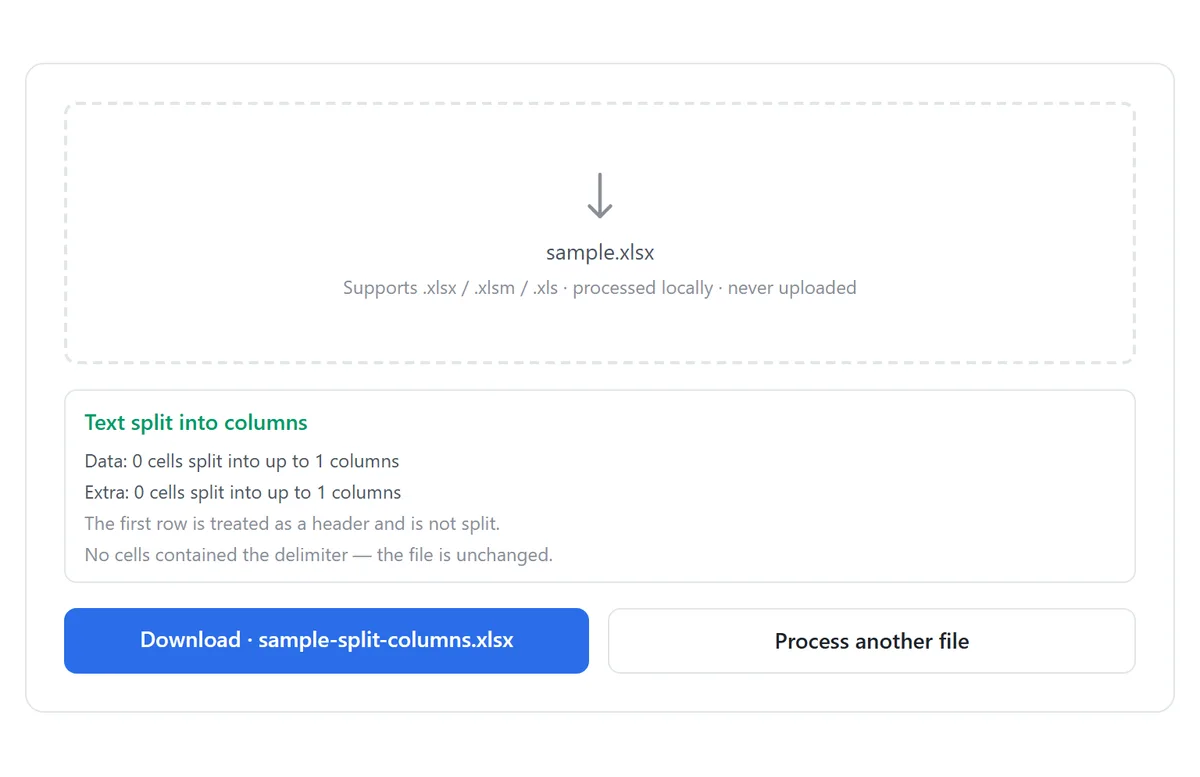
- Review the per-sheet report and download the result as your-file-name-split-columns.xlsx.
Insert vs Overwrite: Picking the Safe Mode
Both modes read the same source column but write the result differently. If column B holds “red,green,blue” in a three-column sheet and is split on commas:
| Before (A, B, C) | Insert mode after | Overwrite mode after |
|---|---|---|
| id, red,green,blue, note | id, red, green, blue, note | id, red, green, (note gone) |
Overwrite mode exists for sheets where nothing lives to the right of the source column — splitting “First Last” in column A of a name-only list, for example. The moment any column to the right holds data you need, use Insert mode.
For a two-part name in column A of an empty-ish sheet, Overwrite is clean: the first name replaces A, the last name lands in B. For a CRM export with an email column in B, Insert is the only safe choice.
Manual Method: Text to Columns Inside Excel
- Select the column of full names.
- Go to Data → Text to Columns, choose Delimited, and click Next.
- Tick Space (for “Ada Lovelace” style names) or Comma (for “Lovelace, Ada” imports), then Finish.
Text to Columns always overwrites — cells to the right of the selection are replaced without asking. The wizard also works on exactly one column of one sheet per run: a five-sheet workbook with a names column on each sheet means five wizard passes, five decisions about delimiters, and five chances to eat the wrong column.
The wizard’s “Other” box accepts one single character — it cannot split on a multi-character delimiter such as “ - ” or “, ” with a trailing space. Those imports need the online tool or formulas.
The Formula Method, and When It Is Worth It
Formulas produce a live split that updates when the source cell changes — the only reason to prefer them over a one-time split:
- Excel 365/2021: =TEXTBEFORE(A2," ") for the first name, =TEXTAFTER(A2," ") for the last.
- Older Excel: =LEFT(A2,FIND(" ",A2)-1) for the first name; =MID(A2,FIND(" ",A2)+1,100) for the last.
- Every variant needs a spare column pair and a copy-paste-as-values pass to freeze the results.
One honest limitation no method escapes: a split is mechanical. “Mary Jane Watson” becomes “Mary” + “Jane Watson” on a space delimiter — middle names need two passes (split once, then split the remainder again), and multi-part surnames like “Van Der Berg” need a judgement call no tool can make for you. After splitting imported data, a cleanup pass on stray spaces is usually next.
Which Method Fits Which Situation
| Split Text to Columns tool | Text to Columns wizard | Formulas | |
|---|---|---|---|
| All sheets at once | Yes | No, one column per run | No |
| Insert mode (nothing overwritten) | Yes | No — always overwrites | Yes (spare columns) |
| Multi-character delimiters | Yes | Single character only | Yes |
| Excel install needed | No | Yes | Yes |
| Live update on source change | No — one-time result | No | Yes |
Tools Used in This Guide
Frequently Asked Questions
How do I split “Last, First” imports like “Lovelace, Ada”?
Choose comma as the delimiter — the result is last name first, so use Insert mode and swap the two result columns, or just read them in that order downstream.
What happens to names with more than two parts?
A space split puts the first token in the first column and everything after it in the second. Run the tool a second time on the remainder column to pull middle names out.
Will “Van Der Berg” get mangled?
A mechanical split treats every space the same, so multi-part surnames spread across columns. Review those rows after splitting — no tool can know where a surname really ends.
Can the header row be split by accident?
No. With “First row is a header” enabled (the default), row 1 is skipped entirely and its titles stay whole.
Is my spreadsheet uploaded to a server?
No. The file is parsed and rewritten entirely in your browser — nothing leaves your device, and no sign-up is required.
Does it work with .xls and .xlsm too?
Yes — .xlsx, .xlsm, and .xls are all accepted, and every sheet in the workbook is processed in the same pass.
Related Guides
Ready to try it on your own file?
Open Split Text into Columns in Excel — It's Free