How to Switch Rows and Columns in Excel
Updated 2026-10-11 · Free · Works in your browser
Quick answer
In Excel, copy the range and use Paste Special → Transpose — a static flipped copy. For whole workbooks, the free online Transpose tool flips every sheet (rows become columns, columns become rows) in one pass, with a before/after dimension report and no 16,384-column ceiling.
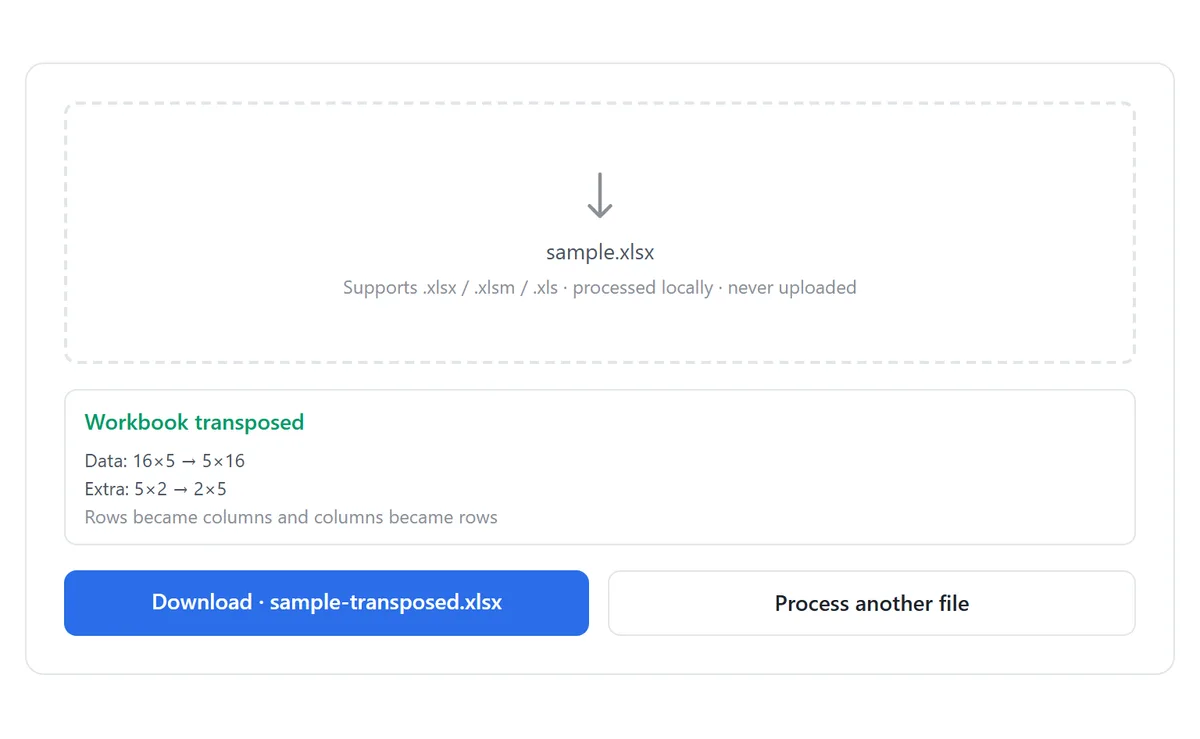
Skip the reading — jump straight to the free tool: Transpose Excel Rows and Columns →
How to Transpose a Whole Workbook Online
- Open the free Transpose tool and drop in your .xlsx, .xlsm, or .xls workbook. Everything runs locally — the file is never uploaded.
- Click Transpose. Every sheet is flipped: the cell at row 1, column 2 moves to row 2, column 1, and so on for every cell.
- Check the per-sheet report — dimensions before and after (a 3×2 sheet becomes 2×3).
- Download the result as a clean .xlsx.
| Before — 3 rows × 2 columns | After — 2 rows × 3 columns |
|---|---|
| Name, City | Name, Ada, Leo |
| Ada, Paris | City, Paris, Rome |
| Leo, Rome |
The old first column (Name, Ada, Leo) becomes the new first row, and the old second column (City, Paris, Rome) becomes the new second row. Headers, numbers, dates, and empty cells all travel with their values.
Manual Method: Paste Special → Transpose
- Select the range you want to flip and copy it (Ctrl+C).
- Click the top-left cell of the destination — it must have enough empty room below and to the right.
- Right-click → Paste Special → tick Transpose → OK.
Paste Special Transpose pastes a static copy — it does not move anything, so the original range is still there to delete by hand. And it has a hard ceiling Excel will not warn you about until it fails: a sheet can hold at most 16,384 columns, so transposing a long column of 20,000 rows is simply impossible. Formulas in the copied range are also re-anchored to the new position, which usually wrecks relative references.
For one small range on one sheet, Paste Special is perfectly fine and instant. The costs only appear at scale: one sheet per run, manual cleanup of the source, and the column limit.
The TRANSPOSE Function, and Why People Give Up on It
=TRANSPOSE(A1:C20) returns a live flipped array. In Excel 365 it spills automatically; on older versions it must be entered over the whole target area with Ctrl+Shift+Enter. Either way, the result is a formula:
- The source range is locked — deleting or inserting rows inside it spills #REF! across the flipped copy.
- You cannot edit a single cell of the result; every change goes through the formula and the source.
- Moving the file to another tool (CSV export, import into a database) requires freezing it to values first — a second, separate step.
| Transpose tool | Paste Special | TRANSPOSE() | |
|---|---|---|---|
| Whole workbook, all sheets | Yes | Per range, per sheet | Per formula |
| Row-count ceiling | None | 16,384 columns max | Same sheet limit |
| Result is plain values | Yes | Yes | No — formula |
| Source range untouched | Yes | Original stays behind | Must stay intact |
| Excel install needed | No | Yes | Yes |
One more thing worth knowing before you flip: if the range contains formulas, any transposed copy — tool included — carries values, not the formulas. If you want the values frozen deliberately and the formulas gone from the source too, that is a separate, one-click conversion.
Tools Used in This Guide
Frequently Asked Questions
Does transposing change my data?
Only the orientation. Values, numbers, dates, and blank cells keep their content — the cell at row R, column C ends up at row C, column R.
Can I transpose just one sheet?
The tool flips every sheet in the workbook in one pass. For a single small range, Paste Special → Transpose inside Excel is the lighter option.
What happens to formulas?
The output is rebuilt at value level, so formula cells travel as their current calculated result. Freeze formulas to values first if you want the numbers locked in a specific known state.
Is there a size limit like Paste Special’s 16,384 columns?
No workbook-side ceiling is imposed — sheets with more rows than Excel’s column limit can still be flipped, since the tool writes a new workbook rather than pasting into an existing sheet grid.
Will my cell styles and colors come across?
Values, numbers, and dates are preserved. The output is rebuilt from cell values, so decorative styling is simplified — see the tool page for the exact scope.
Is my file uploaded anywhere?
No. Parsing and rewriting happen entirely in your browser — nothing leaves your device, and no sign-up is required.
Related Guides
Ready to try it on your own file?
Open Transpose Excel Rows and Columns — It's Free