How to Delete Blank Rows in Excel Without Sorting
Updated 2026-10-11 · Free · Works in your browser
Quick answer
The most reliable no-sorting method is filtering: select your data, turn on Filter, untick (Blanks), delete the visible rows, then clear the filter. For whole workbooks — every sheet at once, header protected — the free online Remove Empty Rows tool does it in one pass and reports how many rows each sheet lost.
Skip the reading — jump straight to the free tool: Remove Empty Rows from Excel →
How to Delete Blank Rows Without Sorting (Online, All Sheets)
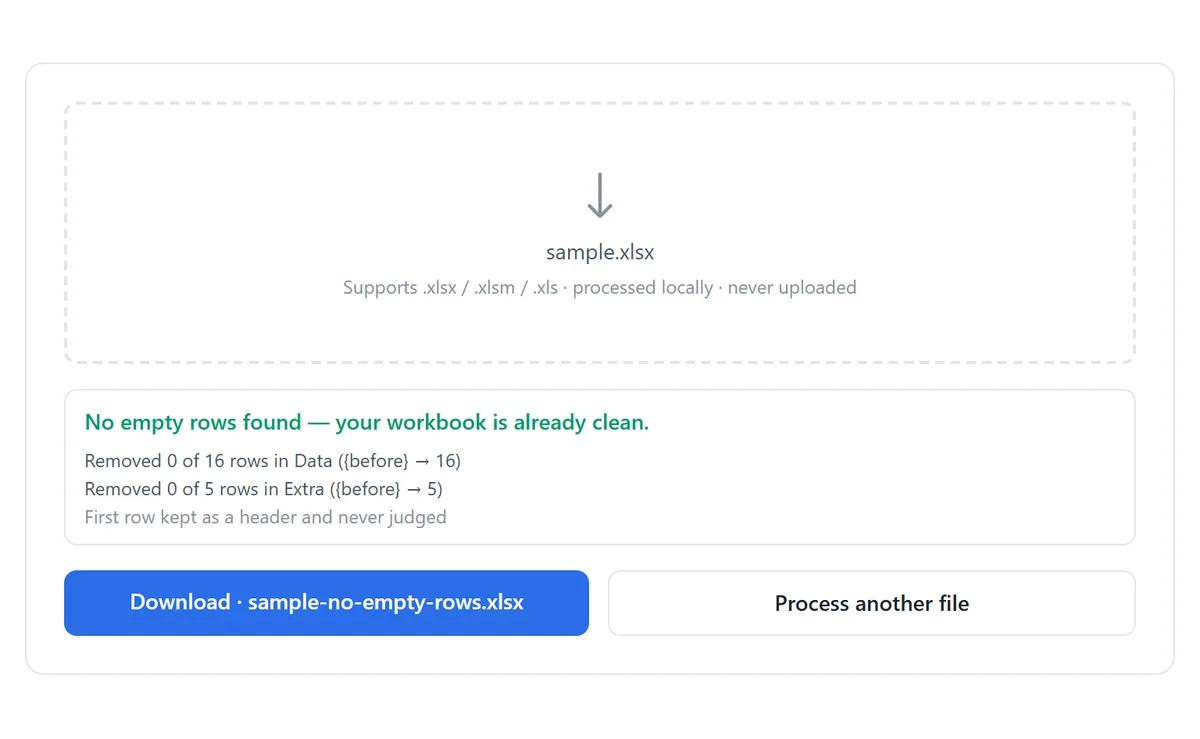
- Open the free Remove Empty Rows tool and drop in your .xlsx, .xlsm, or .xls workbook. Everything runs locally in your browser — the file is never uploaded.
- Choose how an empty row is detected: strictly empty cells only, or whitespace-only rows as well (the default). A row containing nothing but a stray space counts as blank in the default mode.
- Keep “First row is a header — always keep it” enabled if row 1 holds column titles. The header row is preserved unconditionally and never judged.
- Click Remove empty rows. Every sheet is scanned, matching rows are deleted, and surviving rows keep their original order.
- Download the cleaned workbook as your-file-name-no-empty-rows.xlsx and review the before/after counts for each sheet.
The whole workbook is processed in one pass — you do not have to repeat anything per sheet, and you do not have to select ranges carefully first. If a sheet has no blank rows, nothing on it changes.
What Counts as a Blank Row
A row is only deleted when every cell across its full width is empty. A single value, formula result, date, or number anywhere in the row keeps it alive. The two detection modes differ only in how “empty” is judged:
| Cell content | Strict mode (off) | Whitespace mode (on, default) |
|---|---|---|
| Nothing at all | Deleted | Deleted |
| A space, tab, or line break only | Kept | Deleted |
| A formula that returns “” | Kept | Deleted |
Whitespace-only mode is the right default for real-world exports. Rows that look empty but contain invisible characters are exactly the ones that break VLOOKUPs, charts, and pivot ranges — but a truly empty-looking row that holds a hidden formula result is also caught.
Manual Method: Filter Out Blanks and Delete the Visible Rows
If you are working inside Excel and only need one sheet cleaned, the filter method deletes blank rows without changing the row order:
- Select your data range, including the header row.
- On the Data tab, click Filter (or press Ctrl+Shift+L).
- Open the filter dropdown on a column that is always filled in real rows — usually the first one.
- Untick (Blanks) so only rows with data are shown… then reverse: untick everything except (Blanks).
- Select the visible blank rows, right-click, choose Delete Row, and confirm deleting entire rows.
- Clear the filter (Ctrl+Shift+L again). The remaining rows are back in their original order, gaps closed.
Two classic traps: first, the filter method only works on one sheet at a time — a 12-sheet workbook means 12 rounds of clicking. Second, if your “blank” rows are not really blank (a space or an empty-string formula), they will not appear as (Blanks) in the filter at all, and nothing gets deleted.
Why Not Just Sort the Column?
Sorting is the fastest manual trick — sort any column A→Z and the blank rows sink to the bottom for easy deletion. It is also the most destructive, which is why it is worth avoiding whenever the row order matters:
- Sorting reorders every row in the range, destroying any meaning the original order carried (entry order, timestamps, ledger sequences).
- If the selection misses a column, that column is not sorted along with the rest — rows become silently scrambled, and there is no undo after saving.
- Sort cannot be run safely when a table shares rows with neighbouring, unrelated data on the same sheet.
Go To Special (F5 → Special → Blanks, then Ctrl+- → Entire row) is another quick option, but it selects truly empty cells only — the same invisible-character blind spot the filter has — and one misclick deletes the wrong rows with no report of what went away.
Which Method Fits Which Situation
| Remove Empty Rows tool | Filter + delete | Sort + delete | |
|---|---|---|---|
| Keeps original row order | Yes | Yes | No |
| Works across all sheets at once | Yes | No, per sheet | No, per sheet |
| Catches whitespace-only rows | Yes (default) | No | No |
| Protects the header automatically | Yes | Manually | Manually |
| Needs Excel installed | No | Yes | Yes |
| Report of what changed | Per sheet | No | No |
Blank rows rarely travel alone. After the rows are gone, the same workbook usually needs the same treatment for columns — the Remove Empty Columns tool mirrors this workflow sideways — or a pass to filter down to just the records you actually need.
Tools Used in This Guide
Frequently Asked Questions
Will deleting blank rows move my data around?
No. The rows below a deleted blank row shift up to close the gap, but every surviving row keeps its relative order — nothing is sorted, reversed, or rearranged.
Does the header row get deleted if it is technically “row 1”?
No. With “First row is a header — always keep it” enabled (the default), row 1 of every sheet is kept unconditionally and never evaluated as blank.
Is my file uploaded to a server?
No. The workbook is parsed and rewritten entirely in your browser. Nothing leaves your device, and no sign-up is required.
What about rows that only contain a space or an empty-string formula?
They are treated as blank in the default whitespace mode and deleted. Switch to strict mode if you want to keep rows that are not literally empty.
Will my cell formatting survive?
Values, formulas that return values, dates, and numbers are all preserved. The output is rebuilt from cell values, so decorative cell styling is simplified — check the tool page for the exact scope.
Can it also delete blank columns?
Yes, with the companion Remove Empty Columns tool — the detection logic is the same, applied to full columns instead of rows.
Related Guides
Ready to try it on your own file?
Open Remove Empty Rows from Excel — It's Free